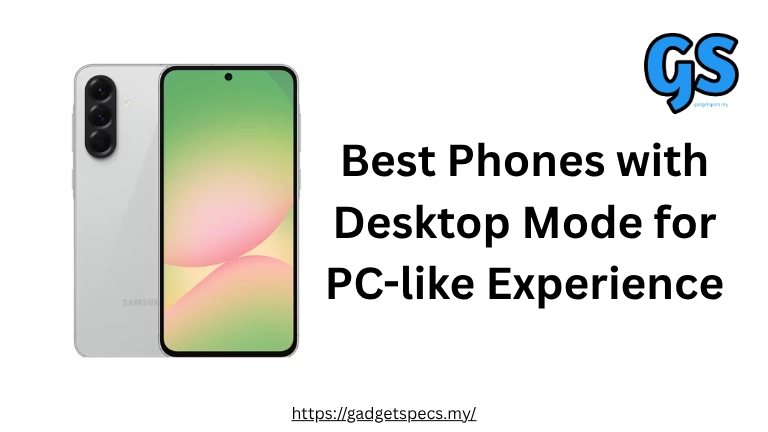
Best Phones with Desktop Mode for PC-like Experience in Malaysia 2026
What if your smartphone could transform into a full desktop computer? Desktop mode technology — led by Samsung DeX, Motorola Ready For, and similar solutions — allows modern smartphones to power a traditional desktop experience when connected to a monitor, keyboard, and mouse. This means you can run Android apps in resizable windows, multitask like on Windows or macOS, edit documents professionally, browse with a desktop-style browser, and even play mobile games on a big screen — all powered by the phone in your pocket.
For Malaysian users, desktop mode eliminates the need for a separate laptop for light productivity tasks, makes your phone a portable workstation you can use anywhere with a monitor, and provides a seamless transition between mobile and desktop computing. This comprehensive guide covers every smartphone with desktop mode available in Malaysia, how these features work, what accessories you need, real-world use cases, and which phone offers the best desktop experience for your needs and budget.
Quick Answer: Best Desktop Mode Phones
The best smartphones with desktop mode in Malaysia are Samsung Galaxy S26 / S26 Ultra (Samsung DeX — most mature and polished), Samsung Galaxy Z Fold8 (DeX + large unfolded display), Motorola Edge 70 Ultra (Ready For with gaming focus), and budget options like Samsung Galaxy A56 5G (DeX support at RM1,799). Samsung DeX is the gold standard with wireless display support, multi-window capabilities, and compatibility with any monitor. You’ll need a USB-C to HDMI cable or wireless display adapter, plus Bluetooth keyboard and mouse for the full experience. Desktop mode is ideal for light productivity, presentations, media consumption, and mobile gaming on big screens.
What is Desktop Mode & How Does It Work?
Desktop mode transforms your smartphone’s Android interface into a desktop-like experience optimized for large displays, keyboard, and mouse input. Instead of seeing your phone screen mirrored on a monitor, you get:
Desktop Mode Features:
- Taskbar & Start Menu: Windows-like taskbar at bottom with app launcher, running apps, and system tray
- Resizable Windows: Apps open in windows you can move, resize, minimize, and maximize — true multitasking
- Mouse & Keyboard Support: Full cursor control, right-click menus, keyboard shortcuts (Ctrl+C, Ctrl+V, etc.)
- Desktop-Style Browser: Chrome or Samsung Internet renders full desktop websites, not mobile versions
- File Management: Desktop file explorer for managing documents, photos, downloads like on a PC
- Multi-Monitor Support: Some implementations support external displays while keeping phone screen active
- App Continuity: Switch between phone mode and desktop mode seamlessly — apps stay open
- Wireless or Wired: Connect via USB-C cable or wirelessly using Miracast/Smart View
Desktop Mode Platforms Available:
- Samsung DeX: Most mature, available on Galaxy S, Note, Z Fold/Flip, and select A-series phones
- Motorola Ready For: Available on Edge series, focus on gaming and entertainment
- EMUI Easy Projection: Huawei’s solution (limited availability in Malaysia due to Google restrictions)
- Stock Android Desktop Mode: Basic implementation in Pixel and some other phones (less polished)
Why Use Desktop Mode in Malaysia?
Desktop mode isn’t just a gimmick — it solves real problems for Malaysian users:
Perfect Use Cases:
- Light Productivity Without Laptop: Edit documents, spreadsheets, presentations when traveling without carrying a laptop
- Business Presentations: Connect to any HDMI display or projector for client presentations, meetings, training sessions
- Hotel/Airbnb Work: Use the TV as your monitor when traveling — instant desktop workspace
- Co-working Spaces: Many Malaysian co-working spaces have monitors at desks — just bring your phone
- University Students: Complete assignments, research, group projects using library or hostel monitors
- Mobile Gaming on Big Screen: Play Mobile Legends, PUBG Mobile, Genshin Impact on TV with controller
- Media Consumption: Watch Netflix, YouTube, Disney+ Hotstar on TV using phone as remote control
- Photo/Video Editing: Edit photos and videos on large display with precise mouse control
- Backup Computer: If your laptop breaks, your phone becomes emergency desktop replacement
- Minimalist Lifestyle: One device for everything — phone, desktop, entertainment center
For users who need full laptop power, check our guides on best laptops that sync seamlessly with phones and best phones for business professionals.
Best Phones with Desktop Mode in Malaysia
Here are the smartphones with the best desktop mode implementations available in Malaysia:
Why It’s #1: The Samsung Galaxy S26 Ultra represents the pinnacle of desktop mode experience. Samsung DeX has matured over seven generations and now rivals basic desktop operating systems in functionality. The S26 Ultra’s Snapdragon 8 Elite Gen 5 processor handles multitasking effortlessly, with up to 16GB RAM ensuring smooth performance even with 15+ apps open simultaneously. Unique to the Ultra: S Pen support in DeX mode for precise editing, annotations, and digital art on external displays. Wireless DeX works flawlessly with Samsung Smart TVs or any Miracast-compatible display.
DeX Capabilities: Run up to 20 apps in resizable windows, full Microsoft Office suite optimization, desktop Chrome with extensions support, external monitor resolution up to 4K @ 60Hz, low-latency mode for gaming, phone screen works as trackpad when connected wirelessly.
Pros: Best DeX experience, S Pen integration, flagship performance, wireless DeX, 7 years updates
Cons: Very expensive, large/heavy, overkill for casual users
Learn more: Samsung Galaxy S26 Ultra complete review, S24 Ultra vs S25 Ultra comparison, and best Samsung phones in Malaysia.
Why It’s Great: The Galaxy Z Fold8 offers something no other phone can: run DeX on the phone’s own 7.6-inch unfolded display without any external monitor. Unfold it, enable DeX mode, connect Bluetooth keyboard and mouse, and you have a portable desktop workstation anywhere. Alternatively, connect to an external display and use the phone’s large screen as a second monitor or drawing tablet. This dual-screen DeX capability is unique to the Fold series and perfect for traveling professionals who need desktop functionality without carrying monitors.
DeX Capabilities: All S26 Ultra features plus on-device DeX mode, dual-screen productivity (phone + external monitor simultaneously), tablet mode with DeX for on-the-go work, S Pen support on internal display.
Pros: DeX on phone screen, dual-screen mode, most portable desktop solution, flagship specs
Cons: Most expensive option, foldable durability concerns, heavy
More details: Best foldable phones in Malaysia and Samsung Galaxy Z Trifold.
Why It’s Great: The standard Galaxy S26 and S26 Plus offer identical DeX functionality to the Ultra but at significantly lower prices. You get the same desktop mode experience, wireless DeX support, multi-window capabilities, and 4K output — you just lose the S Pen and some camera features. For users who want DeX primarily for productivity and don’t need stylus input, these are the sweet spot: flagship performance and full desktop mode at RM2,000+ savings compared to the Ultra.
DeX Capabilities: Identical to S26 Ultra except no S Pen support. Full multi-window, wireless DeX, 4K output, desktop browser, file management, all productivity features.
Pros: Full DeX experience, much cheaper than Ultra, flagship specs, compact (S26) or big battery (S26+)
Cons: No S Pen support, smaller displays than Ultra
Read our review: Samsung Galaxy S25 price Malaysia and compare with S25 Ultra vs iPhone 16 Pro Max.
Why It’s Great: Motorola Ready For is Samsung DeX’s main competitor, with a unique focus on gaming and entertainment. While it offers full productivity features (desktop browser, resizable windows, file management), Ready For excels at transforming your phone into a gaming console or entertainment hub. Connect to your TV wirelessly, pair a Bluetooth controller, and play mobile games with optimized low-latency mode. The Edge 70 Ultra’s flagship specs ensure smooth desktop performance, and Ready For works with any Miracast display — not just Motorola accessories.
Ready For Capabilities: Desktop mode with multi-window support, dedicated gaming mode with controller mapping, wireless screen mirroring, video conferencing with phone as webcam, media player mode for streaming.
Pros: Best for gaming, wireless support, clean Android, competitive pricing, strong performance
Cons: Ready For less mature than DeX, limited availability in Malaysia, shorter software support
Full review: Motorola Edge 70 Ultra Malaysia.
Why It’s Great: The Samsung Galaxy A56 5G brings desktop mode to the mid-range segment at under RM2,000 — making DeX accessible to budget-conscious users. While it lacks wireless DeX and is limited to 1080p output (vs 4K on flagships), it provides all core desktop functionality: multi-window apps, desktop browser, keyboard/mouse support, and productivity features. Perfect for students, freelancers, or anyone who wants to try desktop mode without flagship investment. Performance is adequate for Office apps, web browsing, media consumption, though heavy multitasking may lag compared to flagship chips.
DeX Capabilities: Core DeX features — multi-window, desktop browser, productivity apps, file management. No wireless DeX, limited to 1080p output, fewer simultaneous apps than flagships.
Pros: Most affordable DeX phone, good mid-range specs, 5 years updates, excellent value
Cons: No wireless DeX, 1080p output only, weaker performance vs flagships
More info: Samsung Galaxy A36 5G, best Samsung phones under RM3,000, and best mid-range phones Malaysia.
Desktop Mode Phones – Complete Comparison
| Model | Desktop Mode | Wireless | Max Output | RAM | Price (RM) |
|---|---|---|---|---|---|
| Galaxy S26 Ultra | Samsung DeX | Yes | 4K @ 60Hz | 12GB / 16GB | 5,270 – 6,800 |
| Galaxy Z Fold8 | Samsung DeX | Yes | 4K @ 60Hz | 12GB / 16GB | 7,299 – 8,799 |
| Galaxy S26 / S26+ | Samsung DeX | Yes | 4K @ 60Hz | 8GB / 12GB | 3,999 – 4,799 |
| Motorola Edge 70 Ultra | Ready For | Yes | 4K @ 60Hz | 12GB / 16GB | 3,499 – 3,999 |
| Galaxy A56 5G | Samsung DeX | No | 1080p @ 60Hz | 8GB | 1,799 – 1,999 |
For performance comparisons, see our guides on most powerful flagship phones of 2026 and phone RAM vs processor performance.
How to Set Up Desktop Mode
Setting up desktop mode varies by implementation, but here’s a comprehensive guide:
Samsung DeX Setup (Wired):
- Get a USB-C to HDMI cable/adapter: Any USB-C to HDMI adapter works (RM30-100 on Shopee/Lazada). Ensure it supports video output.
- Connect phone to monitor: Plug USB-C end into phone, HDMI end into monitor/TV
- DeX launches automatically: Your phone will ask “Start Samsung DeX?” — tap Yes
- Connect keyboard & mouse: Pair Bluetooth keyboard/mouse, or use USB via adapter
- You’re done: DeX interface appears on monitor, phone screen becomes trackpad or stays usable independently
Samsung DeX Setup (Wireless):
- Ensure compatible display: Samsung Smart TV (2019+), any Miracast-compatible TV/monitor, or wireless display adapter
- Open Quick Settings: Swipe down from top of phone screen
- Tap “Smart View” or “DeX”: Select your TV/monitor from the list
- Enable DeX mode: Tap “Start DeX on [Display Name]”
- Connect peripherals: Pair Bluetooth keyboard and mouse
- Done: Wireless DeX running, phone works as trackpad or second screen
Motorola Ready For Setup:
- Connect phone to display: USB-C to HDMI cable or wireless via Miracast
- Ready For launches automatically: Or manually enable via Settings → Ready For
- Choose mode: Desktop, Gaming, or Video Conferencing
- Connect peripherals: Bluetooth keyboard/mouse (Desktop mode) or controller (Gaming mode)
- USB-C to HDMI Adapter: RM50-150 — get one that supports 4K @ 60Hz if you have flagship phone
- Bluetooth Keyboard & Mouse: RM100-500 — Logitech MK470, K380, or similar compact options
- Wireless Display Adapter: RM200-400 (optional) — Microsoft Wireless Display Adapter for non-Smart TVs
- USB-C Hub: RM150-400 (optional) — provides HDMI + USB ports + charging simultaneously
- Bluetooth Controller: RM150-350 (gaming) — Xbox or PlayStation controller for Ready For gaming
For accessory recommendations, see our guides on best USB-C accessories, best wireless chargers, and best fast charging cables.
Real-World Use Cases in Malaysia
Here’s how Malaysians actually use desktop mode in daily life:
1. University Students
Connect to monitors in university libraries or computer labs to complete assignments, research papers, group projects. No need to carry laptop to campus daily — just bring phone and charger. Use Google Docs, Slides, Sheets in desktop mode for full productivity. Perfect for students living in hostels with limited space.
2. Freelancers & Digital Nomads
Work from co-working spaces, cafes, or client offices using available monitors. Arrive with just phone, connect wirelessly to Smart TV or monitor via HDMI, and you have full workstation. Edit documents, video calls, manage projects — all from phone. When meeting ends, disconnect and leave with everything in pocket.
3. Business Presentations
Present to clients without laptop — connect phone to office projector or TV via HDMI. Display PowerPoint, PDF presentations, product demos. Use phone as remote control to advance slides. More portable than carrying laptop to meetings across KL/Penang/JB.
4. Hotel/Airbnb Work
Business travelers can work from hotel rooms using TV as monitor. Most modern Malaysian hotels have HDMI-equipped TVs. Connect phone, pair portable keyboard/mouse (pack in luggage), instant desktop workspace. No need for hotel business center.
5. Mobile Gaming on Big Screen
Connect to living room TV, pair Xbox/PlayStation controller, play Mobile Legends, PUBG Mobile, Genshin Impact, Honkai Star Rail on 55″ screen with desktop performance. Motorola Ready For gaming mode is specifically optimized for this. Better experience than phone screen, cheaper than gaming console.
6. Content Creation
Edit photos and videos on large display with precise mouse control. Use apps like Lightroom Mobile, CapCut, KineMaster in desktop mode with full timeline visibility. Much easier than editing on small phone screen. Perfect for Malaysian YouTubers, TikTokers, Instagram content creators.
For content creation phones, check our guides on best phones for vlogging and content creation, best phones for content creators and influencers, and best phones for video editing.
Desktop Mode Limitations & Drawbacks
While desktop mode is impressive, it’s not a complete laptop replacement. Be aware of these limitations:
1. App Compatibility
Not all Android apps work well in desktop mode. Some apps force portrait orientation, refuse to resize, or don’t support keyboard shortcuts. Desktop-optimized apps (Microsoft Office, Chrome, Adobe apps) work great, but obscure apps may have issues. Gaming apps often work but some disable landscape mode or have UI problems.
2. Not True Desktop OS
DeX/Ready For run Android apps in windows, not Windows/Mac programs. You can’t install Photoshop, AutoCAD, professional video editing software, or Windows-only tools. Limited to Android app ecosystem. For professional creative work, you still need actual laptop.
3. Performance Under Heavy Load
Even flagship phones thermal throttle with 15+ apps open + 4K video output + heavy multitasking. Battery drains quickly in desktop mode. For marathon 8-hour work sessions, you’ll need phone plugged in continuously. Not as snappy as dedicated laptop for intensive tasks.
4. Storage Limitations
Phones max out at 1TB storage (expensive). If you work with large video files, RAW photos, extensive document libraries, you’ll run out of space faster than on laptop with 2TB SSD. Cloud storage helps but requires internet. For storage-heavy work, check our guide on phones with ultra-fast storage.
5. Peripheral Compatibility
Not all USB peripherals work — printers may not connect, some webcams incompatible, specialized professional equipment (MIDI controllers, graphics tablets beyond basic stylus) often unsupported. Basic keyboard, mouse, USB drives, HDMI work fine.
6. Wireless DeX Latency
Wireless DeX/Ready For has slight input lag (50-100ms) compared to wired. Fine for productivity, videos, casual gaming, but competitive gamers or precision work should use wired connection. WiFi congestion affects performance.
Who Should Use Desktop Mode?
✅ Perfect For:
- University students who need occasional desktop computing without carrying laptop daily
- Freelancers and digital nomads working from co-working spaces, cafes, client offices
- Business professionals giving presentations without laptop
- Travelers who want work capability without packing laptop
- Minimalists seeking one-device lifestyle
- Budget-conscious users who can’t afford both phone and laptop
- Mobile gamers wanting big-screen experience
- Content creators needing larger workspace for editing
- People with monitors at home/office but want portable computing
❌ Not Ideal For:
- Professional creative workers needing Adobe Creative Suite, Final Cut, AutoCAD, etc.
- Software developers requiring full IDE, multiple terminals, Docker, etc.
- Heavy multitaskers running 30+ Chrome tabs + multiple professional apps
- Users working with massive files (4K video editing, large datasets, CAD models)
- Anyone needing 8+ hour unplugged work sessions (battery won’t last)
- People requiring Windows/Mac-specific software
For complete smartphone buying guidance, see our articles on how to choose the best smartphone in Malaysia and things to check before buying a smartphone.
Frequently Asked Questions
Can I use desktop mode without accessories?
Technically yes — you can enable DeX/Ready For and control it using phone’s touchscreen as trackpad. But it’s impractical. You really need at minimum a Bluetooth mouse. Keyboard is highly recommended for productivity. Monitor is essential (that’s the whole point). Minimum viable setup: HDMI cable + Bluetooth mouse (RM80 total).
Does desktop mode drain battery faster?
Yes, significantly. Outputting 4K video, running multiple apps, processing desktop-optimized interfaces drains battery 2-3x faster than normal phone use. Expect 2-3 hours unplugged in heavy desktop mode use. Always keep phone charging when using desktop mode for extended periods. USB-C hubs with power delivery allow charging while connected to monitor.
Can I use phone simultaneously with desktop mode?
Yes, especially with wireless DeX/Ready For. Your phone screen remains usable as second display or trackpad while desktop mode runs on external monitor. You can text, take calls, use phone apps independently while working on monitor. Galaxy Z Fold8’s dual-screen DeX is particularly good for this.
Which Samsung Galaxy phones support DeX?
All flagship Galaxy S series (S10 onwards), Galaxy Note series (Note 9 onwards), Galaxy Z Fold/Flip series, and select A-series mid-rangers (A52, A53, A54, A55, A56, etc.). Budget A-series below A50 tier generally don’t have DeX. Always verify specific model before purchase if DeX is priority.
Does iPhone have desktop mode?
No. Apple does not offer desktop mode on iPhone. You can mirror iPhone to external displays, but you just get phone interface enlarged — not desktop experience with windows, mouse, keyboard optimization. This is Samsung’s major advantage over iPhone for productivity users. For iPhone alternatives, see our guide on best alternatives to iPhone in Malaysia.
Can I connect multiple monitors to phone?
Samsung DeX on flagship phones (S23 Ultra onwards) supports dual displays — external monitor + phone screen working as two independent displays. Some USB-C hubs claim multi-monitor support but it’s unreliable. True multi-monitor like on desktop PC isn’t practical with phones. Stick to single external display for best experience.
Is wireless DeX as good as wired?
Almost, but not quite. Wired DeX via USB-C delivers 4K @ 60Hz with zero latency and no connection drops. Wireless DeX is limited to 1080p on most displays (4K on some Samsung TVs), has 50-100ms input lag, and can stutter if WiFi is congested. For serious productivity work, use wired. For media consumption, presentations, casual use, wireless is convenient and works well.
Do I need Samsung TV for wireless DeX?
No. Wireless DeX works with any Miracast-compatible display — most Smart TVs from LG, Sony, TCL, Hisense, etc. support Miracast. Non-Smart TVs need a wireless display adapter (RM200-400). Samsung Smart TVs get better optimization and higher resolution support, but aren’t required. Test compatibility before purchasing if wireless DeX is priority.
Alternatives to Desktop Mode
If desktop mode doesn’t meet your needs, consider these alternatives:
1. Tablets with Keyboard
iPad with Magic Keyboard, Samsung Galaxy Tab S9 with Book Cover Keyboard, or Surface Pro provide more traditional laptop-like experience with larger screens and better app optimization for desktop tasks. See our guide on which tablet is best in Malaysia.
2. Ultra-Portable Laptops
Lightweight Windows laptops or MacBook Air provide full desktop OS in portable package. Better for professional work but less convenient than phone-only solution. Check our recommendations for best laptops that sync with phones.
3. Cloud Desktop Solutions
Services like Microsoft 365, Google Workspace work well on phone browsers with keyboard/mouse. Less powerful than desktop mode but accessible on any device. For productivity-focused phones, see best phones for business professionals.
4. Remote Desktop Apps
TeamViewer, Chrome Remote Desktop, Microsoft Remote Desktop let you control your home/office PC from phone. Requires PC to remain on but gives full Windows/Mac access remotely.
Final Verdict: Is Desktop Mode Worth It?
Game-Changing Convenience:
Desktop mode genuinely delivers on its promise — turn your phone into a usable desktop computer. For Malaysian users
who travel frequently, work from multiple locations, or want to minimize devices, it’s incredibly liberating. The
ability to arrive anywhere with just a phone and instantly set up a full workstation is genuinely transformative.
Samsung DeX has matured to the point where it’s genuinely practical for real work, not just a tech demo.
Samsung’s Commanding Lead:
Samsung DeX is significantly more polished and feature-complete than competitors. Seven generations of refinement
show — wireless support is seamless, app compatibility is excellent, S Pen integration on Ultra models is unique,
and the ecosystem works reliably. If desktop mode is a priority, Samsung phones are the clear choice. Motorola
Ready For is catching up but still trails in maturity and app optimization.
Not a Laptop Replacement (Yet):
Desktop mode excels at light-to-moderate productivity — emails, documents, spreadsheets, presentations, web browsing,
video calls, content consumption. It struggles with professional creative work, software development, heavy multitasking,
and Windows/Mac-specific software. Think of it as 70% of a laptop’s capability in 100% of a phone’s portability.
Perfect for students, freelancers, travelers, but professionals should keep a laptop for serious work.
Bottom Line:
Buy a phone with desktop mode if: you frequently need desktop computing away from home, you’re a student without
space for laptop, you’re budget-conscious and can’t afford both phone and laptop, or you value minimalist one-device
lifestyle. The best options in Malaysia are Samsung Galaxy S26 series (best DeX experience),
Galaxy Z Fold8 (portable desktop on phone screen), or Galaxy A56 5G (affordable
DeX). For comprehensive smartphone recommendations, explore our guides on
best smartphones of the year in Malaysia,
best value for money smartphones,
and
flagship phones with desktop mode.