
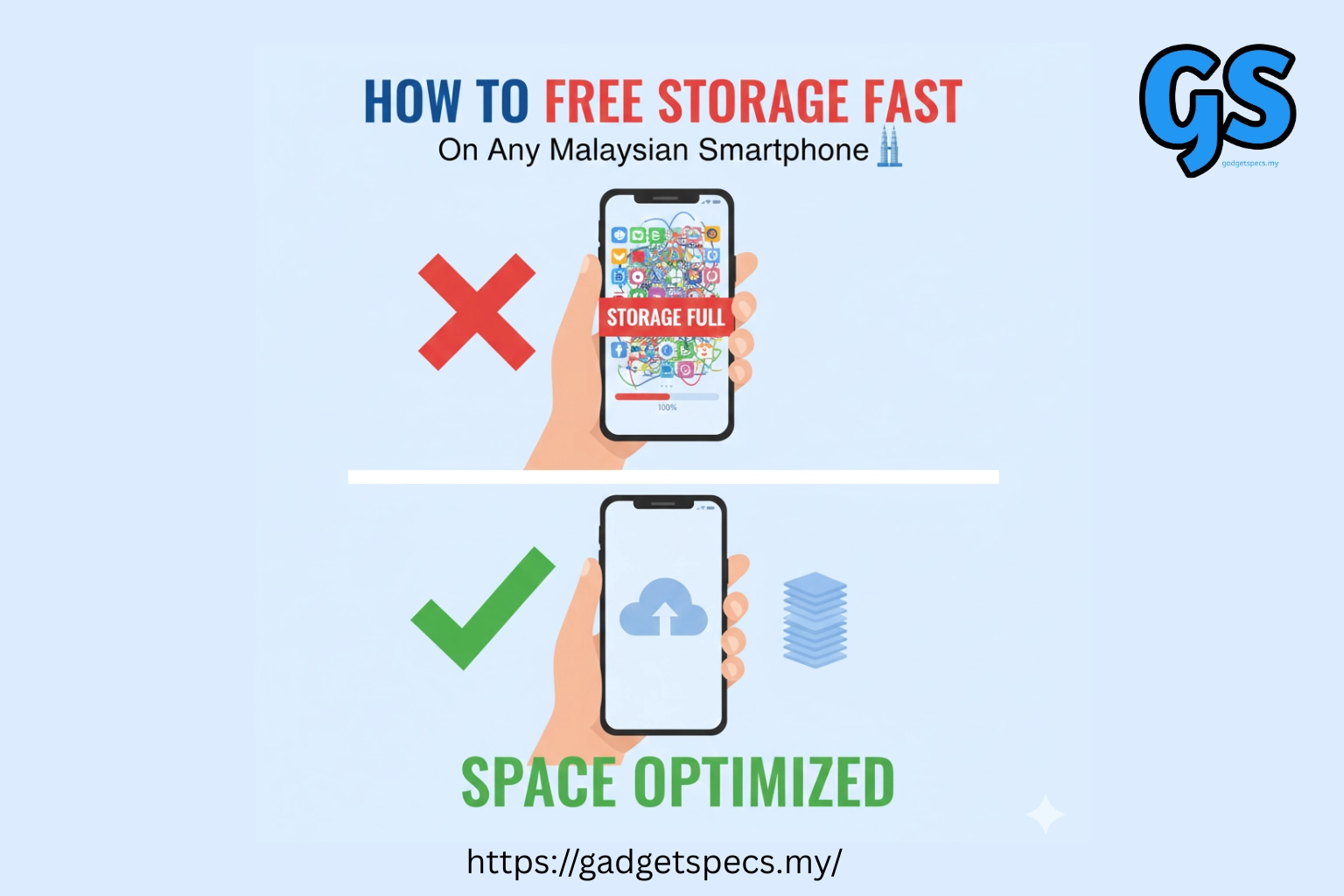
How to Free Storage Fast on Any Malaysian Smartphone (2026)
Running out of storage on your Malaysian smartphone? The dreaded “Storage Full” notification stops you from taking photos, downloading apps, and receiving WhatsApp messages. With Malaysians averaging 50GB+ of photos, videos, and WhatsApp media, smartphone storage fills up fast—but clearing space doesn’t have to be complicated or time-consuming.
This complete guide shows you how to free storage fast on any Malaysian smartphone (Android and iPhone) using simple, proven methods. From deleting cache and duplicate photos to optimizing WhatsApp and clearing system junk, these expert tips help you recover 10-30GB of storage in under 30 minutes—without deleting important files.
Explore related smartphone optimization and buying guides:
- Best Smartphones of the Year Malaysia
- Best Android Phones Malaysia
- Best iPhone Malaysia
- Best Budget Phones in Malaysia
- Best Cloud Storage for Photos Malaysia
- Best Power Banks for Fast Charging
- Best Phone for Students Malaysia
- Best Samsung Phones Malaysia
- Best Chinese Smartphones Under RM2000
- Best Mid-Range Phones Malaysia
Quick Storage Recovery Methods (Free 10-30GB Fast)
| Method | Storage Recovered | Time Required | Difficulty |
|---|---|---|---|
| Clear WhatsApp Media | 5-15 GB | 5 minutes | Easy |
| Delete Cached Data | 2-8 GB | 3 minutes | Very Easy |
| Remove Duplicate Photos | 3-10 GB | 10 minutes | Easy |
| Offload Unused Apps | 2-5 GB | 5 minutes | Easy |
| Clear Downloads Folder | 1-3 GB | 2 minutes | Very Easy |
| Delete Old Videos | 5-20 GB | 10 minutes | Easy |
| Upload to Cloud Storage | 10-50 GB | 15-30 minutes | Medium |
Pro Tip: Combine these methods to free up 20-50GB total storage. Start with WhatsApp media (biggest storage hog for Malaysians) followed by cache clearing and duplicate photo removal for fastest results.
1Clear WhatsApp Media (Free 5-15 GB)
WhatsApp is the #1 storage consumer for Malaysian users. Group chats accumulate thousands of photos, videos, and voice notes—often duplicates or unwanted content. Clearing WhatsApp media can instantly free 5-15 GB.
Android Users (Samsung, Xiaomi, Oppo, etc.):
Step 2: Storage and Data → Manage Storage
Step 3: Review items (shows largest files first)
Step 4: Tap on chats with most storage → Select “Forwarded many times” or “Larger than 5 MB”
Step 5: Tap “Delete Items” → Confirm
Result: Instantly frees 5-15 GB from unwanted WhatsApp media
iPhone Users:
Step 2: Storage and Data → Manage Storage
Step 3: Review items → Tap chats with large storage
Step 4: Select unwanted media → Delete
Alternative: Settings → General → iPhone Storage → WhatsApp → Delete App (re-download, media won’t restore)
Prevent Future WhatsApp Storage Issues:
- Disable Auto-Download: WhatsApp Settings → Storage and Data → Media Auto-Download → Turn OFF for Mobile Data and Wi-Fi
- Delete Old Chats: Regularly archive or delete inactive group chats
- Use “Delete for Me”: Delete unwanted media from chats (won’t affect others)
- Backup to Cloud: WhatsApp Settings → Chats → Chat Backup → Back up to Google Drive/iCloud
2Delete Cached Data (Free 2-8 GB)
Cached data stores temporary files from apps (Instagram, Facebook, TikTok, browsers). Over time, cache accumulates to several GB without you realizing. Clearing cache is safe—apps will rebuild necessary cache automatically.
Android Users:
Step 1: Settings → Storage → Cached Data
Step 2: Tap “Clear Cached Data” → OK
Result: Instantly clears 2-8 GB of cache from all apps
Method B – Individual App Cache (Selective):
Step 1: Settings → Apps → Select app (Instagram, Facebook, TikTok)
Step 2: Storage → Clear Cache (NOT Clear Data)
Step 3: Repeat for other apps
Best for: Instagram (500MB-2GB), Facebook (300MB-1GB), TikTok (500MB-1.5GB)
iPhone Users:
Settings → Safari → Clear History and Website Data → Clear
App Cache (No Built-in Option):
Settings → General → iPhone Storage → Select app → Offload App (preserves data) OR Delete App (clears everything)
Re-download app for fresh start with cleared cache
3Remove Duplicate Photos (Free 3-10 GB)
Malaysians take hundreds of similar photos (burst mode, WhatsApp saves, Instagram downloads). Duplicate photos waste 3-10 GB easily. Use built-in tools or apps to find and delete duplicates quickly.
Android Users:
Step 1: Open Google Photos app
Step 2: Tap Library (bottom) → Utilities
Step 3: Find “Free up space” → Review what will be deleted
Step 4: Tap “Free up XX GB” → Delete
Removes: Photos/videos already backed up to cloud, duplicates, blurry photos
Alternative – Files by Google App:
Step 1: Install “Files by Google” (free)
Step 2: Open app → Clean tab
Step 3: Review “Duplicate files” → Select → Delete
iPhone Users:
Step 1: Photos app → Albums → Recently Deleted
Step 2: Delete All (empties trash permanently)
Remove Duplicates (iOS 16+):
Step 1: Photos → Albums → Scroll to “Utilities”
Step 2: Tap “Duplicates” → Review → Merge duplicates
Keeps best quality version, deletes duplicates
Third-Party Apps:
Remo Duplicate Photos Remover (free) – Scans and removes duplicates automatically
4Offload Unused Apps (Free 2-5 GB)
Apps you haven’t used in months waste storage. “Offload” removes the app but keeps your data—perfect for seasonal apps (e-commerce apps after sales, travel apps after trips).
Android Users:
Step 2: Sort by “Last Used” or “Size”
Step 3: Uninstall apps not used in 3+ months
Common Culprits: Old games (1-3 GB each), shopping apps (Shopee, Lazada during off-sales), travel apps
iPhone Users:
Settings → General → iPhone Storage → Select app → Offload App
Keeps data, removes app (re-download anytime)
Automatic Offload (Recommended):
Settings → App Store → Offload Unused Apps → Enable
iPhone automatically offloads unused apps when storage low
5Clear Downloads Folder (Free 1-3 GB)
Downloads folder accumulates PDFs, APK files, images, and documents you downloaded once and forgot. Clearing downloads is quick and safe.
Android Users:
Step 2: Tap “Downloads” folder
Step 3: Long-press to select all → Delete
Alternative: Settings → Storage → Files → Downloads → Select → Delete
iPhone Users:
Step 2: Select → Delete
Note: iPhones have smaller downloads folders (most files in apps)
6Delete Old Videos (Free 5-20 GB)
Videos consume massive storage—a single 4K video can be 1-3 GB. Review and delete old recordings, especially WhatsApp video status saves and old TikTok/Instagram downloads.
Android: Files app → Sort by “Size” → Delete large videos
iPhone: Photos → Albums → Videos → Sort by size
WhatsApp Videos: Usually auto-saved in WhatsApp/Media/WhatsApp Video folder
Screen Recordings: Often forgotten—each 5-10 minutes = 500MB-1GB
4K Videos: 1 minute 4K = ~400MB—consider switching to 1080p recording
Prevent Video Storage Issues:
- Reduce Video Quality: Camera Settings → Video Quality → 1080p 30fps (vs 4K 60fps)
- Auto-Upload to Cloud: Google Photos/iCloud auto-backup, then delete local copies
- Disable WhatsApp Auto-Save: WhatsApp Settings → Turn off video auto-download
7Upload to Cloud Storage (Free 10-50 GB)
Cloud storage (Google Photos, iCloud, OneDrive) lets you backup photos/videos and delete local copies. Free tier options available for Malaysians.
Best Free Cloud Options for Malaysians:
| Service | Free Storage | Best For |
|---|---|---|
| Google Photos | 15 GB (shared with Gmail/Drive) | Android users, photo backups |
| iCloud | 5 GB | iPhone users (RM3.90/mo for 50GB) |
| OneDrive | 5 GB | Microsoft Office users |
| Dropbox | 2 GB | File sharing |
Setup Cloud Backup (Android – Google Photos):
Step 2: Open app → Tap profile icon → Turn on “Backup”
Step 3: Choose “Storage saver” (unlimited compressed) OR “Original quality” (uses 15GB limit)
Step 4: Wait for upload (connect to Wi-Fi for faster upload)
Step 5: After upload complete → Google Photos → Free up space → Delete local copies
Result: Photos in cloud, 10-50 GB freed locally
Setup Cloud Backup (iPhone – iCloud):
Step 2: Enable “iCloud Photos”
Step 3: Choose “Optimize iPhone Storage” (keeps thumbnails, full res in cloud)
Result: Automatically frees space as needed while keeping all photos accessible
Bonus Storage Saving Tips for Malaysian Users
Prevent Storage Issues:
- Use Lite Apps: Facebook Lite (2MB vs 60MB), Messenger Lite, Twitter Lite—save 100-200 MB per app
- Stream, Don’t Download: Use Spotify (stream), Netflix (don’t download entire series), YouTube (no offline)
- Clean Weekly: Set reminder every Sunday to clear WhatsApp media + cache
- Disable Live Photos (iPhone): Camera → Turn off Live Photo—saves 50% photo storage
- Use Files Manager: Install Files by Google (Android) for automatic storage suggestions
Advanced Storage Recovery:
- Clear Telegram Cache: Settings → Data and Storage → Storage Usage → Clear Cache (can recover 5-10 GB)
- Remove Old Podcasts: Podcast apps auto-download—delete listened episodes
- Delete Offline Maps: Google Maps → Offline Maps → Delete downloaded areas
- Clear Browser Data: Chrome → Settings → Privacy → Clear Browsing Data
- Reset Advertising ID: Settings → Google → Ads → Reset advertising ID (clears ad cache)
When to Upgrade Storage Instead of Clearing?
Sometimes clearing storage is temporary fix—you need more actual storage capacity. Consider upgrading if:
- Constant Storage Warnings: Getting “Storage Full” weekly despite cleaning
- Less Than 32GB Phone: 16GB/32GB phones insufficient in 2026—recommend 128GB minimum
- Heavy Photo/Video User: Take 50+ photos/videos daily—need 256GB+ storage
- Gamer: Multiple large games (Genshin Impact 20GB, PUBG 10GB, Mobile Legends 5GB)—need 256GB+
- Budget Available: New phones offer better value—128GB phones start at RM799 in Malaysia
Best Storage Upgrade Options (Malaysia 2026):
- Budget 128GB: Redmi Note 15 (RM799), Infinix Note 40 (RM699)—see best budget phones
- Mid-Range 256GB: Samsung Galaxy A56 (RM1,999), Poco X6 (RM1,399)—check mid-range phones
- Flagship 512GB: Samsung S27 (RM4,999), iPhone 17 (RM5,499)—see best smartphones
- Expandable Storage: Phones with microSD support (Samsung A-series, Xiaomi Redmi)
Final Storage Management Tips
1. Clear WhatsApp media (5 min) – Frees 1-5 GB weekly
2. Delete cache (2 min) – Frees 500MB-2GB weekly
3. Remove screenshots (1 min) – Frees 100-500MB weekly
4. Clear downloads (1 min) – Frees 200MB-1GB weekly
5. Review large files (1 min) – Identify storage hogs
Result: Maintain 10-20% free storage permanently—optimal phone performance
Storage Health Best Practices:
- Keep 10-20% Free: Phones slow down when storage over 90% full
- Monthly Deep Clean: Dedicate 30 minutes monthly to thorough storage cleaning
- Backup Before Cleaning: Ensure important photos/files backed up to cloud
- Don’t Clear System Cache (Android): Let phone manage system cache automatically
- Monitor Storage: Check Settings → Storage weekly to catch issues early
Quick Recap: For fastest results, clear WhatsApp media (5-15 GB), delete cache (2-8 GB), remove duplicate photos (3-10 GB), and upload to cloud storage (10-50 GB). Combined, these methods can free 20-80 GB in under 30 minutes—solving most Malaysian smartphone storage problems instantly!






One Comment